In 2026, forcing guests to manually type in a complex 16-character Wi-Fi password is a thing of the past. Sharing Wi-Fi via a QR Code not only secures your network but makes connecting as simple as a single scan. This guide will show you how to use illi.io's latest tool to create a professional auto-connect QR code in three easy steps.
How Wi-Fi QR Codes Work Under the Hood
A Wi-Fi QR code encodes a standardized plain-text protocol string:
WIFI:T:WPA;S:YourNetworkName;P:YourPassword;H:false;;
Each field serves a specific purpose:
- T (Type): Encryption type — common values are WPA (covers WPA2/WPA3), WEP, and nopass (open networks)
- S (SSID): The Wi-Fi network name, case-sensitive
- P (Password): The network password
- H (Hidden): Whether the network is hidden — true or false
When a phone camera detects this encoded string, the operating system parses the protocol and presents a "Join Network" confirmation prompt. The user taps once and connects — no manual typing required. This protocol is natively supported by iOS 11+, Android 10+, and virtually all major smartphone brands including Samsung, Huawei, Xiaomi, and OPPO.
Step 1: Secure Your Connection on the Router
Before generating a QR code, ensure your underlying network is secure. A strong, random password is essential to prevent unauthorized access.
- Log in to your router's admin panel (typically 192.168.1.1 or 192.168.0.1).
- Go to the "Wireless Settings" section.
- Set encryption to WPA3 (if supported) or WPA2-PSK/AES. Never use WEP — it was broken years ago.
- Set a robust password containing uppercase, lowercase, numbers, and symbols (12+ characters recommended).
- For business use, set up a dedicated Guest Network that's isolated from your internal network. This prevents visitors from accessing company file servers, printers, or other sensitive resources.
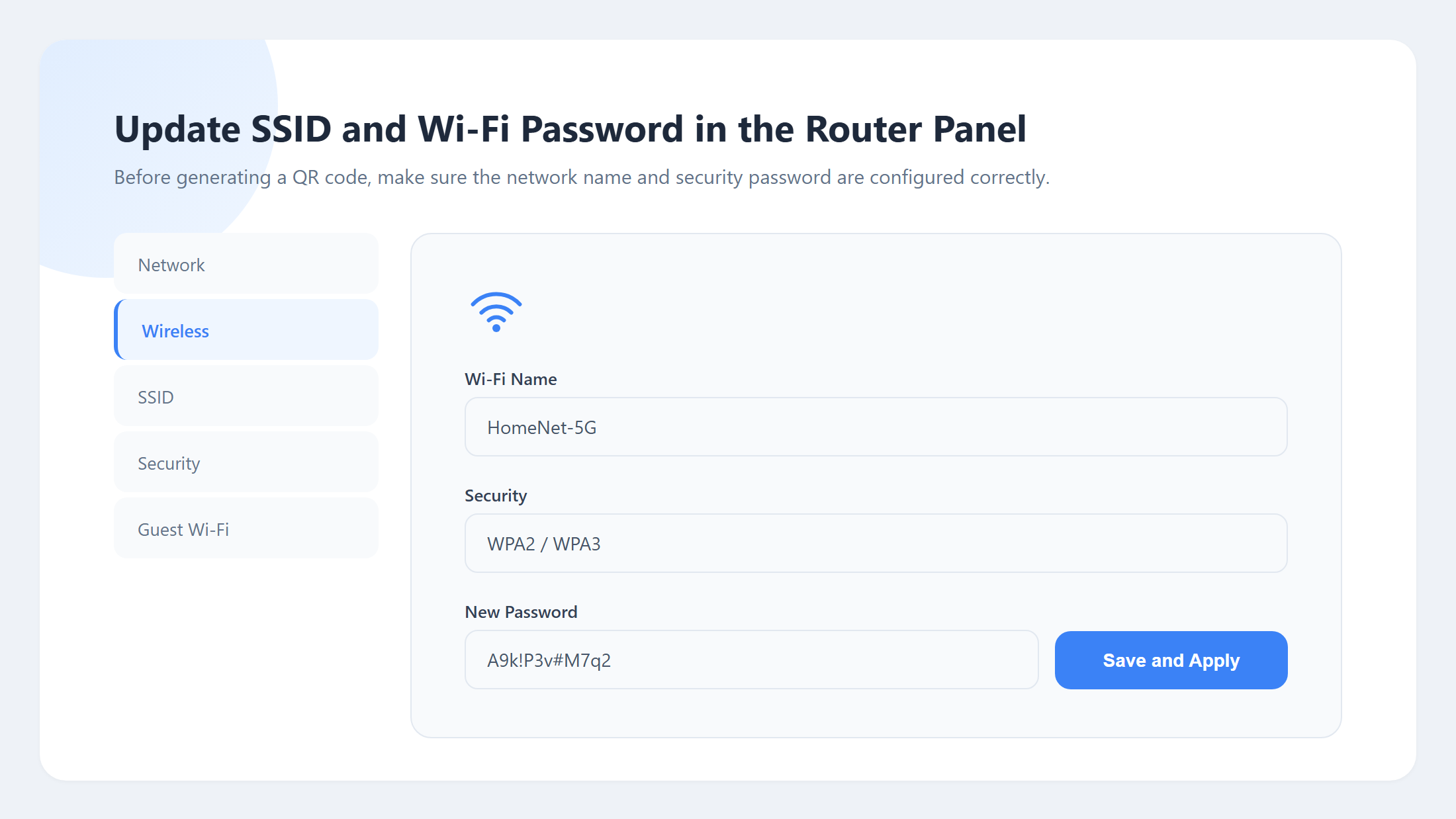
Fig 1: Modifying SSID and Security Password in the Router Admin Panel
Step 2: Generate Your Wi-Fi QR Code with illi.io
Visit our Wi-Fi Password Generator. Unlike generic tools, illi.io features instant previews and client-side generation for 100% privacy — your password never leaves your browser.
- Enter your Wi-Fi name in the SSID field (case must match your router settings exactly).
- Input the Password you just configured on your router.
- Select the encryption type (choose WPA for WPA/WPA2/WPA3 — most devices are compatible).
- Click "Generate Password," and a QR code with the Wi-Fi protocol is rendered instantly.
- Click "Download QR Code" to save the image to your device.
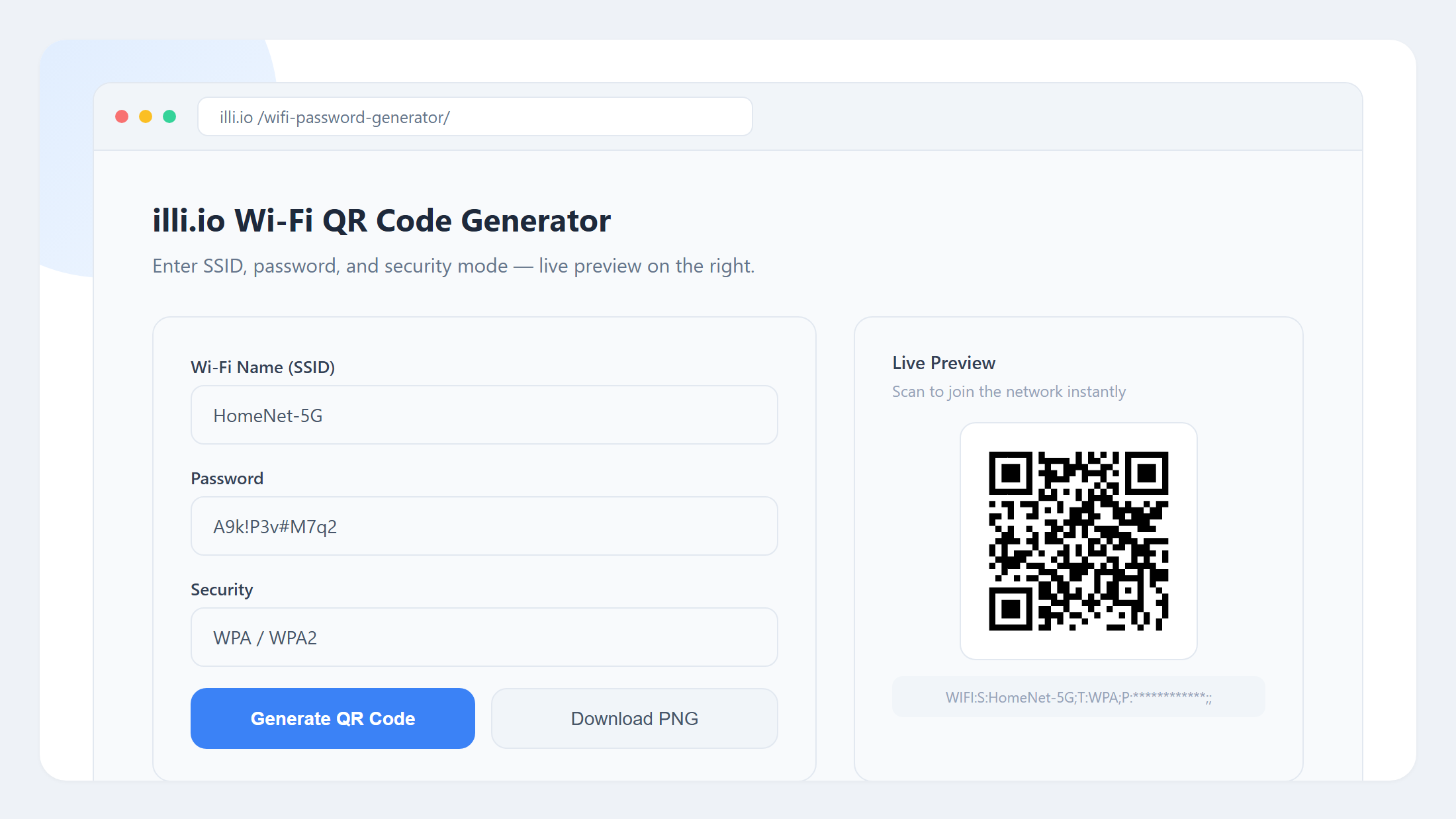
Fig 2: Previewing and generating an auto-connect QR code on illi.io
Step 3: Share and Scan to Connect
The generated QR code follows global Wi-Fi standards and is compatible with almost all modern smartphones:
- iOS (iPhone/iPad): Open the camera, point it at the code, and tap the yellow "Join Network" banner to connect automatically.
- Android: Use the built-in scanner or camera and tap the "Connect to Network" prompt.
- WeChat Scan: Long-press to recognize the code can also trigger Wi-Fi connection on some Android devices.
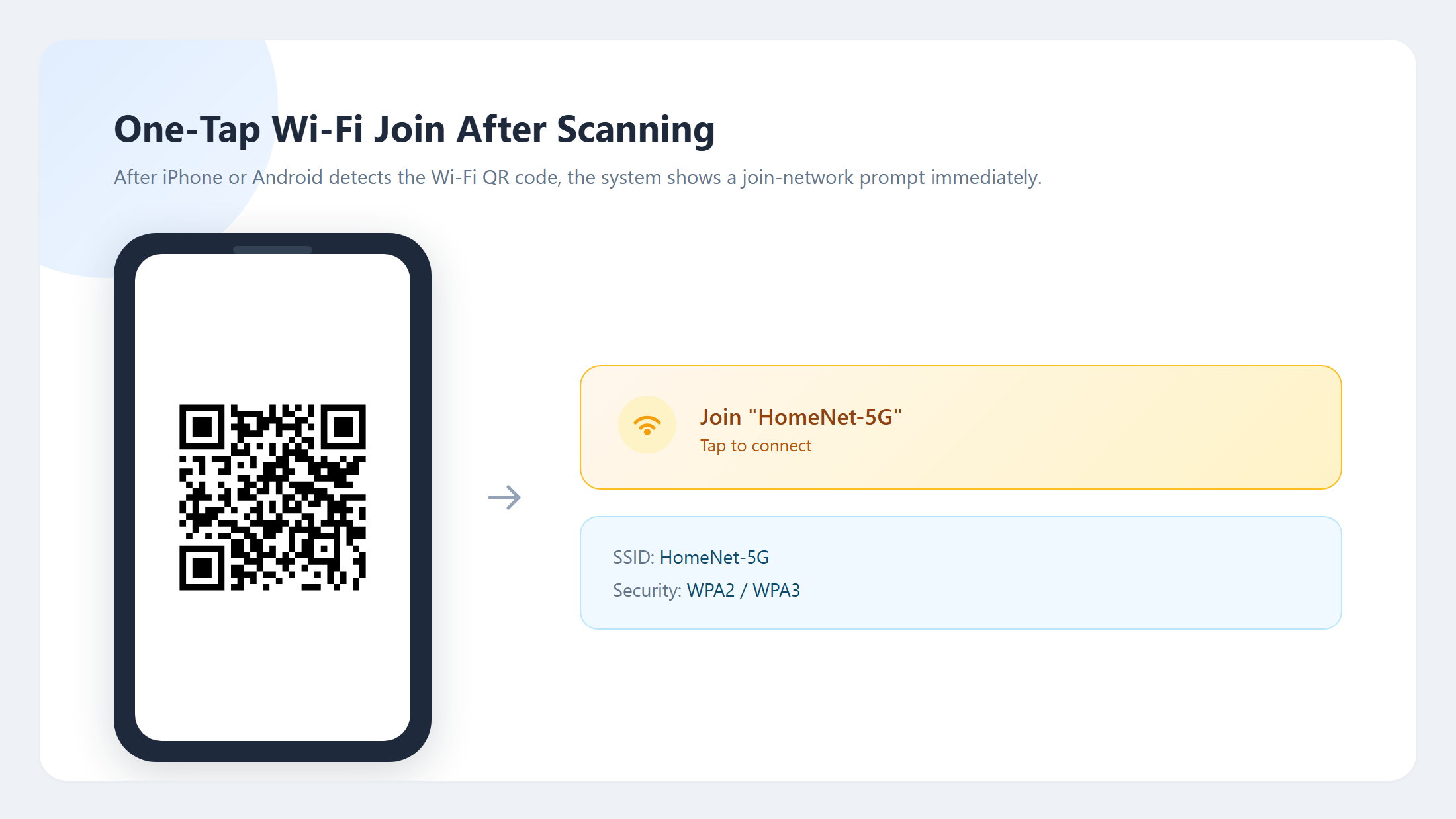
Fig 3: Demonstrating how phones detect the QR code and show the connection prompt
5 Best Use Cases for Wi-Fi QR Codes
1. Home Guests
Print the QR code and stick it on the fridge or near the entrance. When friends visit, they scan instead of asking you to spell out that 20-character password with mixed symbols. Especially helpful when the password contains ambiguous characters like 0/O or l/1.
2. Cafés and Restaurants
Print the code on table tents, menus, or near the register. Customers scan and connect instantly — no more staff repeatedly reciting the password, and less risk of the password being shared to non-customers through word of mouth.
3. Hotels and Airbnbs
Place it on the welcome card or next to the TV. Especially useful for international travelers who may not speak the local language or struggle with password character entry on unfamiliar keyboards.
4. Office Meeting Rooms
Post a Wi-Fi QR code near the door or on the whiteboard. External visitors and partners can join the guest network instantly without IT staff configuring access one by one.
5. Events and Trade Shows
Display a Wi-Fi QR code at the check-in desk or booth. Attendees connect quickly to access event pages, fill out surveys, or download materials.
Security Best Practices
- Never share your primary network: In commercial settings, always create an isolated Guest Network for visitors to prevent access to internal file servers, printers, or databases.
- Rotate passwords regularly: Change your Wi-Fi password every 1-3 months and regenerate the QR code accordingly.
- Control physical placement: Don't place the QR code on exterior windows or public hallways where anyone passing by could scan it.
- Prefer WPA3: If your router and devices support WPA3, use it — it offers stronger encryption algorithms and forward secrecy.
Frequently Asked Questions
Q: Does the QR code contain the password in plain text? Is that secure?
Yes, the Wi-Fi QR code protocol string does contain the password in plain text. However, this is functionally equivalent to telling someone your password verbally. As long as you control who can see the QR code (e.g., displaying it only indoors), the risk is manageable. You can always change the password and regenerate the code if concerned.
Q: Why doesn't the connection prompt appear after scanning?
The three most common causes: (1) The phone's OS is too old (iOS below 11 or Android below 10 don't support this protocol); (2) You're using a third-party scanner app instead of the native camera; (3) The SSID in the QR code doesn't match the router's SSID exactly (case-sensitive).
Q: Does the old QR code still work after changing the password?
No. Wi-Fi QR codes are statically encoded — the password is baked into the pattern. After changing your password, you must generate a new QR code.
By following these steps, you've not only boosted your network security but also provided a high-tech, seamless connection experience for your guests. Head to illi.io Wi-Fi Password Generator and try it now!