Issue Description
Many users find that a photo looks fine in their local gallery, but appears rotated or upside down after uploading. This is usually caused by the Exif orientation metadata, not by file corruption.
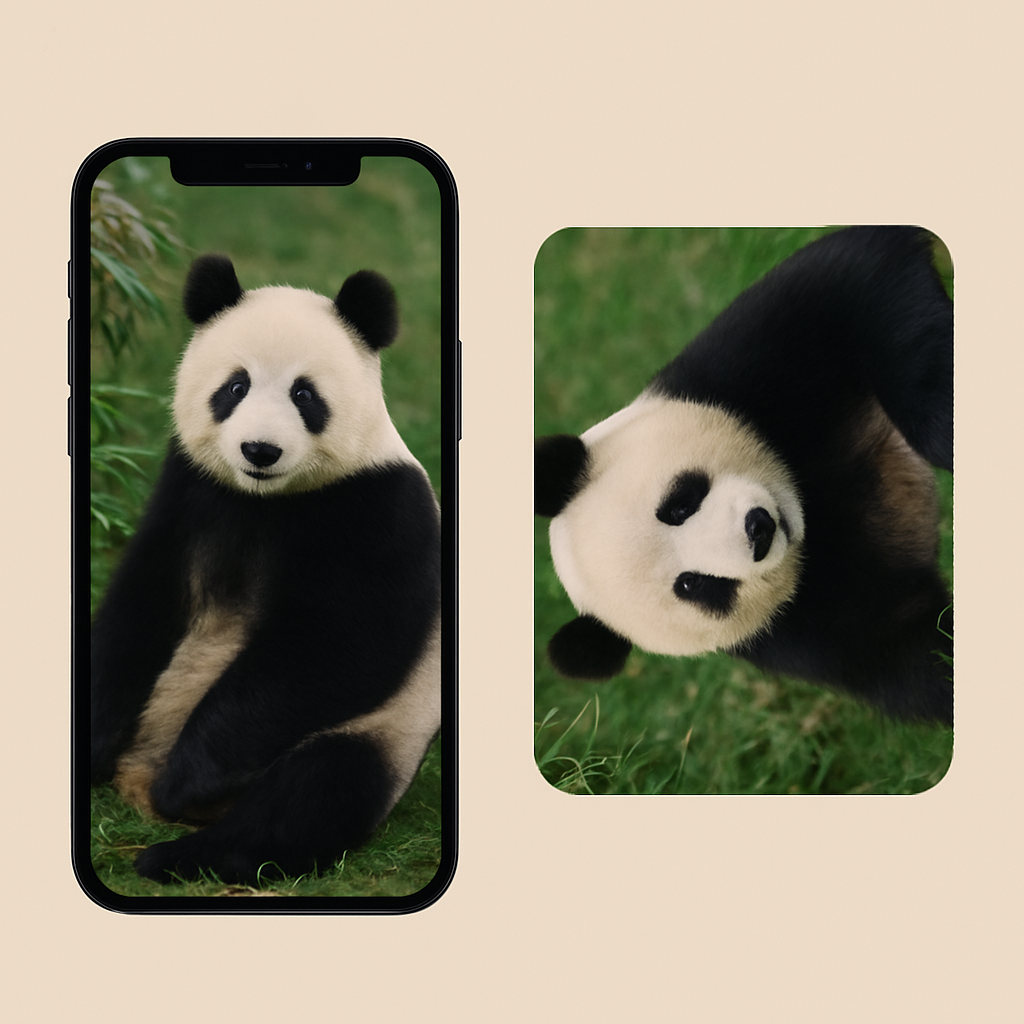
Exif Orientation Data
When you take a photo, the device often saves an orientation tag instead of rotating the actual pixels. Common values include:
- 1 = Normal (no rotation)
- 3 = Rotate 180°
- 6 = Rotate 90° clockwise
- 8 = Rotate 90° counterclockwise
Whether software reads and applies this tag determines if the photo looks correct.
Why the Problem Happens
- Local Gallery: Most mobile and desktop viewers read Exif orientation and display the photo correctly.
- Websites/Systems: Some ignore Exif metadata and just show the raw pixel data, making the photo appear rotated.
How to Fix
- Re-save: Open in an editor (e.g., Photoshop) and export to remove the orientation tag.
- Use Tools:
- Exif Auto Orient: Automatically corrects orientation based on Exif data.
- Exif Viewer: Lets you check Exif metadata, including orientation.
Summary: If a photo rotates after upload, it's usually due to the Exif orientation tag. Correcting or removing it will fix the problem.
The Technical Core of the Orientation Problem
Camera sensors capture pixels in a fixed physical orientation relative to the sensor hardware. When you hold your phone sideways and take a photo, the sensor still captures pixels in its native portrait orientation — but it writes an Exif orientation tag (field 0x0112) telling viewers to rotate the display by 90 degrees. The image data itself is "wrong," but the tag compensates for it.
The problem emerges because different software interprets this tag differently. Some applications (iOS Photos, Android Gallery, modern browsers) respect the tag and auto-rotate the display. Others (older image editors, many web frameworks, some CDNs) ignore the tag and display raw pixel data — resulting in the rotated appearance you see after upload.
Permanent Fixes vs Workarounds
The only fully reliable fix is to bake the correct rotation into the pixel data and delete the orientation tag. Tools like exiftool -rot=0 image.jpg or the "Auto-rotate" function in most image editors accomplish this. Alternatively, configure your camera or phone to capture images in their display orientation from the start (many Android devices have this option in camera settings). Relying on viewers to interpret the Exif tag correctly is a fragile approach that will continue to produce inconsistent results across platforms.